


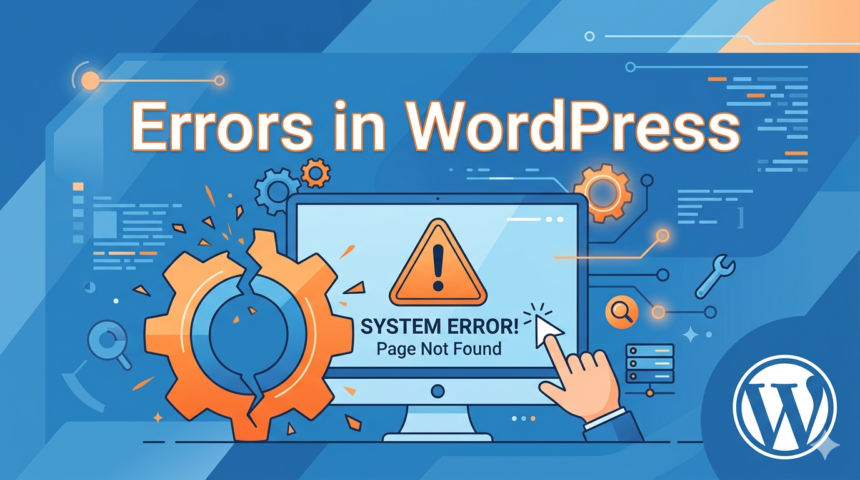
WordPress is one of the most popular website platforms in the world because it is flexible, beginner-friendly, and highly customizable. However, like every website system, WordPress can sometimes show technical errors that confuse beginners. These errors may affect website performance, security, or accessibility.
The good news is that most WordPress problems are common and can be fixed without advanced coding knowledge. Understanding these issues and their solutions can help website owners quickly restore their websites and avoid future problems.
In this article, we will explore some of the most common WordPress errors and their solutions.
1. White Screen of Death
One of the most common WordPress errors is the “White Screen of Death.” Instead of loading your website, WordPress displays a completely blank white page.
Causes:
- Plugin conflicts
- Theme issues
- PHP memory limits
- Corrupted files
Solution:
To fix this problem:
- Disable plugins one by one
- Switch to a default WordPress theme
- Increase PHP memory limit
- Enable debugging mode
You can disable plugins through:
- WordPress dashboard
- File Manager
- FTP access
This error is usually caused by incompatible plugins or themes.
2. Internal Server Error
The “500 Internal Server Error” is another frustrating WordPress problem. It usually means something went wrong on the server, but WordPress cannot identify the exact issue.
Causes:
- Corrupted .htaccess file
- Plugin conflicts
- Server configuration problems
- PHP memory exhaustion
Solution:
Try the following:
- Rename the .htaccess file
- Disable plugins
- Increase PHP memory limit
- Reupload WordPress core files
To regenerate the .htaccess file:
- Login to WordPress
- Go to Settings
- Open Permalinks
- Click Save Changes
This creates a fresh .htaccess file automatically.
3. Error Establishing Database Connection
This error prevents WordPress from connecting to its database.
Causes:
- Incorrect database credentials
- Corrupted database
- Hosting server issues
- Database server overload
Solution:
Check your wp-config.php file and verify:
- Database name
- Username
- Password
- Database host
You can also contact your hosting provider if the database server is down.
This error is common after:
- website migrations
- hosting changes
- incorrect configuration edits
4. Upload_max_filesize Error
Many beginners encounter this error while uploading themes or plugins.
The message usually says:
“The uploaded file exceeds the upload_max_filesize directive in php.ini.”
Causes:
- PHP upload size limit is too low
Solution:
Increase the upload limit through:
- php.ini file
- cPanel PHP settings
- .htaccess file
- hosting dashboard
Many hosting providers allow upload limit changes directly from the control panel.
5. 404 Errors on Pages
Sometimes WordPress pages suddenly show:
- “404 Not Found”
even though the content still exists.
Causes:
- Broken permalinks
- Corrupted .htaccess file
- Incorrect URL structure
Solution:
To fix this:
- Go to Settings
- Open Permalinks
- Click Save Changes
This refreshes WordPress permalink settings and fixes many 404 errors.
6. WordPress Stuck in Maintenance Mode
After updating plugins or themes, WordPress may become stuck in maintenance mode.
Causes:
- Interrupted updates
- Failed plugin installation
Solution:
Delete the “.maintenance” file from your website’s root directory using:
- File Manager
- FTP
Once removed, the website usually works normally again.
7. Slow WordPress Website
A slow website is one of the most common WordPress issues.
Causes:
- Poor hosting
- Too many plugins
- Large images
- Heavy themes
- No caching
Solution:
Improve speed by:
- Using lightweight themes
- Compressing images
- Installing caching plugins
- Choosing better hosting
Useful plugins include:
- LiteSpeed Cache
- WP Rocket
- Smush
Website speed affects:
- SEO
- user experience
- bounce rates
8. Plugin Conflicts
Sometimes plugins stop working properly or break parts of the website.
Causes:
- Incompatible plugins
- Outdated plugins
- Duplicate functionality
Solution:
- Disable all plugins
- Reactivate them one by one
- Identify the problematic plugin
- Replace or update it
Always install plugins from trusted sources.
9. WordPress Login Problems
Some users cannot access the WordPress dashboard.
Causes:
- Incorrect password
- Plugin conflicts
- Corrupted login files
- Security plugins
Solution:
You can:
- Reset password through email
- Disable security plugins
- Clear browser cache
- Reset password through phpMyAdmin
Using strong passwords helps improve security.
10. Mixed Content Errors
After installing SSL certificates, some websites show “Not Secure” warnings.
Causes:
- HTTP content loading on HTTPS pages
Solution:
Use plugins like:
- Really Simple SSL
Also update:
- internal URLs
- image links
- scripts
HTTPS improves:
- security
- user trust
- SEO performance
Tips to Prevent WordPress Errors
Preventing problems is easier than fixing them later.
Best practices include:
- Regular backups
- Updating plugins and themes
- Using reliable hosting
- Installing trusted plugins
- Avoiding unnecessary plugins
- Monitoring website performance
Backup plugins like UpdraftPlus can help protect your website from data loss.
Why Maintenance Matters
Many WordPress issues happen because websites are ignored after setup.
Regular maintenance helps:
- improve security
- prevent errors
- increase speed
- improve compatibility
Even small maintenance tasks can prevent major technical problems later.
Final Thoughts
WordPress errors may seem intimidating at first, especially for beginners. However, most problems have simple solutions and can be fixed without advanced technical skills.
Learning how to identify common WordPress issues helps website owners save time, reduce stress, and maintain a professional website. Whether it is plugin conflicts, database errors, slow performance, or upload issues, understanding the causes and solutions makes website management much easier.
With proper maintenance, backups, updates, and optimization, WordPress can remain fast, secure, and reliable for long-term blogging success.